Gmail address change: what’s new
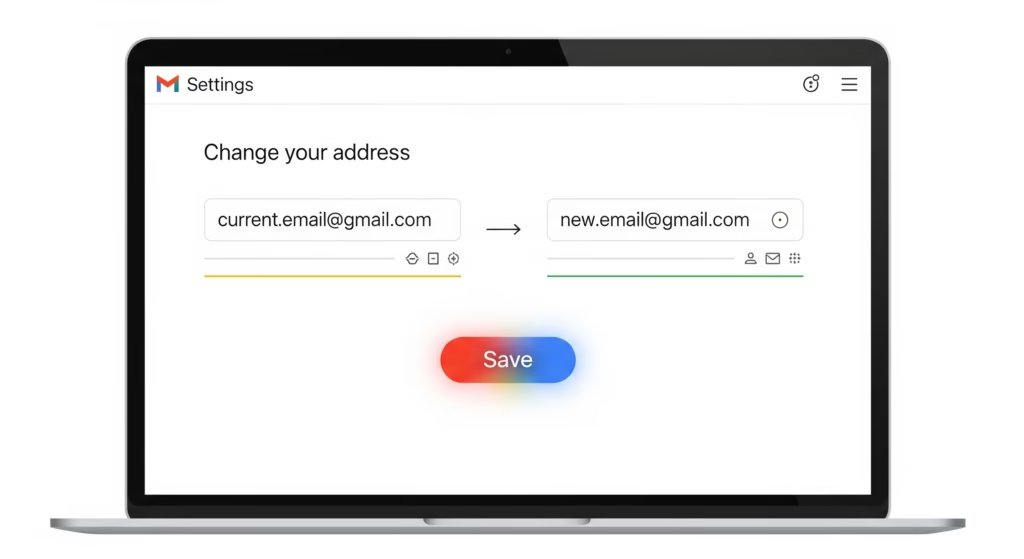
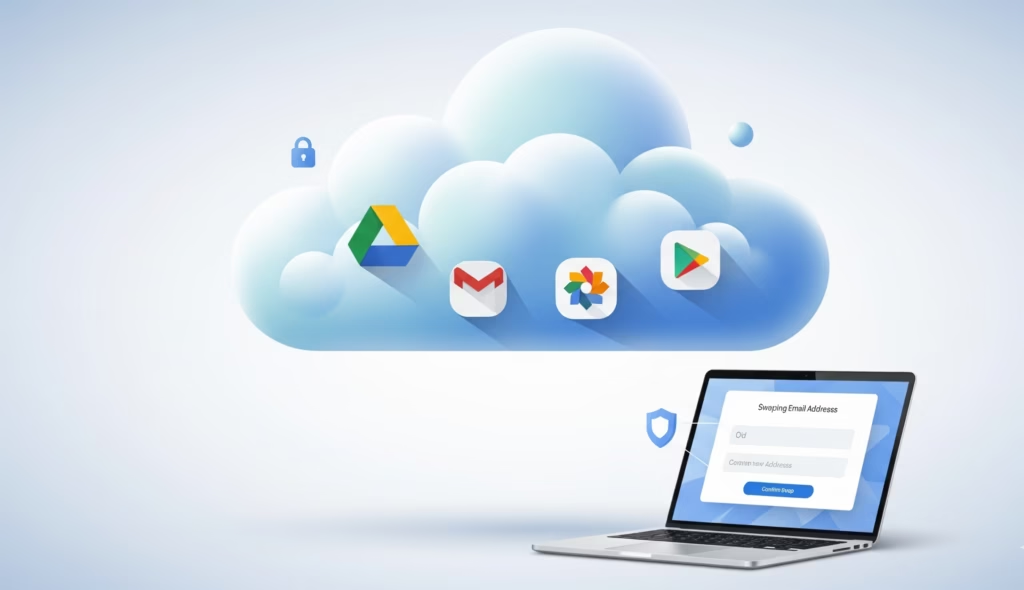
Google is finally rolling out a long‑requested option that lets users change their primary @gmail.com address without creating a new account or losing anything important. Instead of forcing a complete reset, Google now allows personal Gmail users to swap their existing username for a new one, while keeping emails, files, purchases and app access intact.
-
All existing emails, chats and labels in your inbox remain available exactly as before.
-
Google Drive documents, shared folders and collaboration permissions stay linked to the same underlying account.
-
Google Photos, backups, calendar events and Play Store purchases continue to work without needing to re-buy or re-upload.
-
Subscriptions and services connected to your Google Account, such as YouTube, Maps and other Google apps, remain associated with that same profile.
For millions of people stuck with outdated or unprofessional usernames, this upgrade removes the need to abandon years of data just to modernize a Gmail identity. It also helps anyone whose address reflects a past job, city or relationship that no longer fits their current life or brand.
Why this Gmail upgrade matters
Many users set up their first Gmail account in school, during early jobs or at a time when fun nicknames felt appropriate, not professional. Over time, these old usernames can look awkward on resumes, LinkedIn profiles, business cards or client communication, yet changing them used to be nearly impossible without heavy disruption.
Previously, the only realistic option was to create a completely new Google Account, export and import data, and then painstakingly update email addresses on every connected website and service. That approach often resulted in lost messages, broken logins, missed notifications and confusion among contacts.
With the new approach:
-
You can refresh your digital identity while keeping the same underlying Google Account for work, personal and cloud storage needs.
-
You avoid the risks and hassle of manual data migration between different Gmail accounts.
-
Your communication looks more consistent and professional across devices, platforms and services.
In a digital world where platforms often force users into difficult either‑or choices, this change offers rare flexibility and control at the same time.
How changing your Gmail address works
The feature currently applies to personal Google Accounts that end in @gmail.com and is being rolled out gradually across regions. If your account is eligible, you can replace your existing Gmail username with a new @gmail.com address while keeping all your data in place.
When you change your Gmail address:
-
Your old email address is automatically converted into an alias that continues to receive messages.
-
Emails sent to either your old or new address land in the same Gmail inbox, so you don’t miss anything.
-
You can sign in to Google services with either address, since both map to the same underlying Google Account.
Key elements that stay the same include:
-
Inbox and email history: All messages, threads, labels and filters remain intact.
-
Google Drive content: Files, folders, sharing links and ownership details do not change.
-
Google Photos and backups: Your photo library, device backups and albums remain associated with the account.
-
Purchase history and subscriptions: App purchases, in‑app subscriptions and media bought via Google Play stay connected.
This structure allows a smooth transition where your public-facing address changes, but the internal account that powers your Google life remains constant.
Limits and guardrails on Gmail changes
To prevent abuse and keep usernames manageable, Google has introduced specific limits and safeguards for this feature. These restrictions also help reduce confusion for contacts and services that depend on a stable email identity.
Current guardrails include:
-
You can change your Gmail address only once every 12 months on a given account.
-
There is a maximum of three changes per account, giving up to four total Gmail addresses tied to the same account over time.
-
After you change to a new Gmail address, you cannot delete that new address, nor can you reuse the old address to create a separate, standalone Google Account during the cooldown period.
There are also some practical considerations:
-
If you use “Sign in with Google” on third‑party websites, you may need to sign in again or confirm which email is associated with your login.
-
Chromebook users and those relying on Chrome Remote Desktop might have to re‑authenticate using their updated Gmail address.
-
Before making the switch, it is wise to back up critical emails, Drive files and photos, and review which apps or services rely on your existing Gmail.
These guardrails strike a balance between flexibility and stability, ensuring your primary online identity can evolve without becoming chaotic.
How to check if Gmail address change is available
Because this feature is being rolled out in stages, not every account will see the option immediately. The exact wording or layout may vary slightly as Google tests different interface designs across devices and regions.
To see whether your Gmail account supports the address change:
-
Go to myaccount.google.com on a desktop or laptop browser.
-
In the left‑hand menu, select Personal info.
-
Scroll down to the Contact info section and click Email or Google Account email.
-
Look for an option that allows you to change your Google Account email address.
If the option appears, you can check which new Gmail usernames are available and complete the switch from there. If the option is missing, the feature may not have reached your account yet, or your account may be managed by a school, employer or organization that restricts such changes.
Institution‑managed Google Workspace accounts often require administrator approval for changes to primary email addresses. In those cases, it is best to consult your IT or system admin before attempting any modifications.
What an email alias is and why it helps
An email alias is an extra address that delivers messages to the same inbox without requiring a separate login or mailbox. With Gmail’s new feature, your old address automatically becomes an alias when you switch to a new primary @gmail.com address.
Email aliases are valuable because they:
-
Let you preserve contact with people who only know your older address, reducing the risk of missed messages.
-
Help you present a cleaner, more professional primary address while still receiving mail sent to legacy usernames.
-
Make it easier to transition between life stages, jobs or personal brands without breaking existing connections and logins.
Beyond Gmail, aliases are widely used across major email platforms to manage newsletters, separate work and personal communication, and protect privacy when signing up for new services. Properly managed aliases can dramatically improve inbox organization and digital security.
Outlook.com: how to create and use aliases
Microsoft’s Outlook.com lets you create multiple aliases that all connect to one primary Microsoft account. Messages sent to any alias appear in your main inbox, and you can choose which address to show in the “From” field when sending emails.
For example, if your primary email is johnsmith@outlook.com, you could add an alias like john.smith123@outlook.com, and both addresses would deliver to the same inbox. You can then decide whether to send messages from the primary address or the alias depending on context.
Steps to create an Outlook.com alias:
-
Sign in to your Outlook.com or Microsoft account in a browser.
-
Click the gear icon in the upper‑right corner to open Settings, then choose View all Outlook settings.
-
Navigate to Mail and then select Sync email.
-
Under Email aliases or Manage or choose a primary alias, click the option to manage aliases.
-
Select Add email, then either create a new Outlook.com email as an alias or use an existing non‑Microsoft email as an alias.
-
Click Add alias to confirm, and configure which address to use as your primary send‑from address.
Outlook alias limits and rules:
-
You can have up to 10 aliases tied to a single Microsoft account.
-
You can create at most 10 new aliases per year, and no more than two aliases per week, due to rolling limits.
-
Existing Hotmail, Live, Outlook.com and MSN addresses that are already attached to another Microsoft account cannot be added as aliases.
-
Aliases may include letters, numbers, dots, underscores and hyphens, but some legacy domains such as @hotmail.com, @live.com and @msn.com are no longer available for new alias creation.
These constraints help keep accounts secure and manageable while still giving flexibility for organizing different online identities under one login.
Apple iCloud: aliases and Hide My Email
Apple offers two main ways to manage alternative email addresses: traditional iCloud aliases and the newer “Hide My Email” feature available with iCloud+. Both are designed to give users more privacy and control over how their email address is exposed across apps and websites.
Creating iCloud Mail aliases
Through iCloud Mail on the web, you can set up dedicated aliases that forward messages into your primary @icloud.com inbox. These are useful for separating shopping, newsletters, personal communication or business inquiries.
To create an iCloud alias:
-
Go to icloud.com/mail and sign in with your Apple ID if required.
-
Click the gear icon at the top of the Mailboxes list and choose Settings.
-
Open the Account tab and click Add Alias.
-
Enter the Alias Address (for example, shopping@icloud.com) with 3–20 characters, assign a Label and choose the Full Name that should appear in the From field when sending from this alias.
-
Click Create to finalize and start receiving emails to that alias in your main iCloud inbox.
Apple’s documented rules indicate that most users can maintain up to three active email aliases on iCloud.com, although some older accounts from legacy services may have different limits. These aliases do not create separate Apple IDs and do not fully hide your underlying primary email from Apple; they simply route messages through alternative addresses.
Using Hide My Email with iCloud+
Hide My Email is a privacy‑focused feature tied to an iCloud+ subscription that generates unique, random email addresses that forward to your real inbox. This allows you to sign up for apps, newsletters and websites without sharing your true email address, reducing tracking and spam risk.
To create or manage Hide My Email addresses:
-
On your iPhone or iPad, open Settings and tap your name at the top.
-
Tap iCloud, then select Hide My Email.
-
Tap Create New Address and follow the prompts to generate a random address, add a label and note, and save it.
-
You can later tap any existing address to adjust settings or Deactivate Email Address if you no longer want emails forwarded from that alias.
Hide My Email can also appear as a quick option in Safari, Mail and supported third‑party apps when you tap an email field and choose the Hide My Email suggestion above the keyboard. Apple caps the number of active Hide My Email aliases, with reports and guidance indicating a limit around 100 active addresses for iCloud+ users, though exact behavior can vary and may be updated over time.
This combination of up to three iCloud aliases plus a large pool of Hide My Email addresses gives Apple users powerful tools to separate identities, filter spam and protect privacy online.
Yahoo Mail: setting up aliases and key limits
Yahoo Mail also supports aliases to help users differentiate their online activities and reduce clutter in the primary inbox. Yahoo’s implementation combines one main alias with additional send‑only and disposable addresses, offering flexibility for frequent sign‑ups and experiments.
Steps to create a Yahoo Mail alias:
-
Sign in to Yahoo Mail in your browser.
-
Click the gear icon in the top‑right corner and select More Settings from the dropdown menu.
-
In the left‑hand navigation, choose Mailboxes.
-
Under Email alias, click the Add button.
-
Enter the name of your new Yahoo alias (without the “@yahoo.com” part) in the Create a new Yahoo Mail address field and click Set Up.
-
Complete the requested details, such as your name and a description, and decide whether replies should go to the alias or your main Yahoo address, then click Finish.
Yahoo Mail alias structure and limits:
-
You may create one main email alias that can both send and receive messages like a regular address.
-
In addition, Yahoo allows up to 10 send‑only addresses and around 500 disposable email addresses for more temporary or specialized use cases.
-
You can edit your main email alias only a limited number of times, generally up to two edits within a 12‑month period, so choosing a stable, professional alias is important.
While aliases help combat spam and compartmentalize services, they can also introduce some complexity. Some websites may not fully support aliases, especially when addresses contain special characters like “+”, and managing many different addresses can lead to confusion about which alias was used where. For best results, keep a simple record of how you deploy each alias.
Big picture: smarter email identity and privacy
Taken together, Gmail’s new address‑change feature and robust alias options across Outlook, iCloud and Yahoo give users more control than ever over their email identity and privacy. You can modernize an old Gmail address, keep years of data safe, and use aliases on different platforms to separate personal, professional, shopping and experimental online activity.
This shift means you no longer have to pick between convenience and control when managing your main email address. With thoughtful use of aliases and careful planning around login changes, it becomes possible to maintain a long‑term digital identity while still adapting your public‑facing email to match new careers, locations or life stages.
like this article. visit BB for more